
When creating a zoning analysis based on a page group from an old mapping, you might notice that the mapping is not the one you initially selected.
These are rare cases caused by legacy behavior where the same page group was linked to several mappings. This issue was fixed and is not reproducible anymore as a page group can only belong to one mapping.
Note: Seeing another mapping name has no impact on zoning metrics.
How to resolve it?
To fix and avoid having your zoning display the wrong mapping there are two options:
1. You can create your zoning by using a Single Page or a Page group on the fly
2. Alternatively, you can duplicate the mapping in question and use the new one instead
Note: If you want to make a copy of a mapping, you can do so by going to the Analysis Setup menu, locating the mapping you want to duplicate, and selecting Duplicate from the menu that appears when you click on the three dots next to the mapping's name.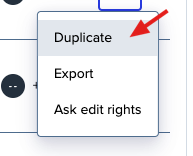
Regarding the old mapping, you can:
a. Rename it (ex. _OLD_mapping_name) to differentiate it from the new one
b. Delete it permanently
Important: Deleting a mapping will result in the deletion of any associated goals and zonings.